

Overview
Webhooks allow your integration to receive real-time notifications when events occur in Stampee. Instead of repeatedly polling the API to check for changes, STAMPEE automatically sends HTTP POST requests to your configured endpoint whenever important events happen.
Standard WebhooksStampee webhooks follow the Standard Webhooks specification for consistent, secure webhook delivery across platforms.
What are webhooks?
Think of webhooks as push notifications for your server. When a customer accepts a delegation, a message is sent, or a consent is granted, Stampee immediately notifies your application so you can respond in real-time.
Common use cases:
- Update your database when a message is successfully delivered
- Notify your team when a customer accepts delegation
- Trigger workflows when consent is granted or rejected
- Download evidence documents as soon as they're generated
- Monitor failed message deliveries for troubleshooting
How webhooks work
- An event occurs - A customer accepts delegation, a message is sent, or consent expires
- Stampee processes the event - The event is validated and prepared for delivery
- HTTP POST sent to your endpoint - Stampee sends the event payload to your configured URL
- Your server responds - Your endpoint processes the event and returns a 200 OK status
- Your application reacts - Update your database, trigger workflows, or notify users
Getting started
Step 1: Access webhooks settings
Navigate to Webhooks in your Stampee dashboard settings.
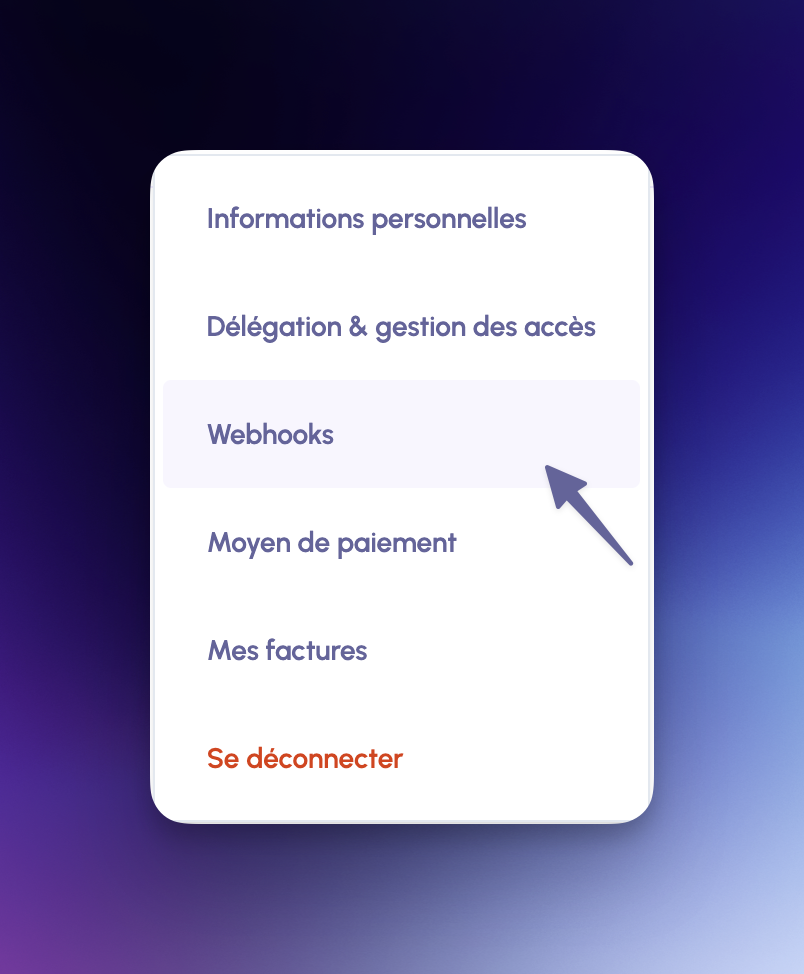
Step 2: Create a webhook endpoint
Click + Créer to create a new webhook subscription.
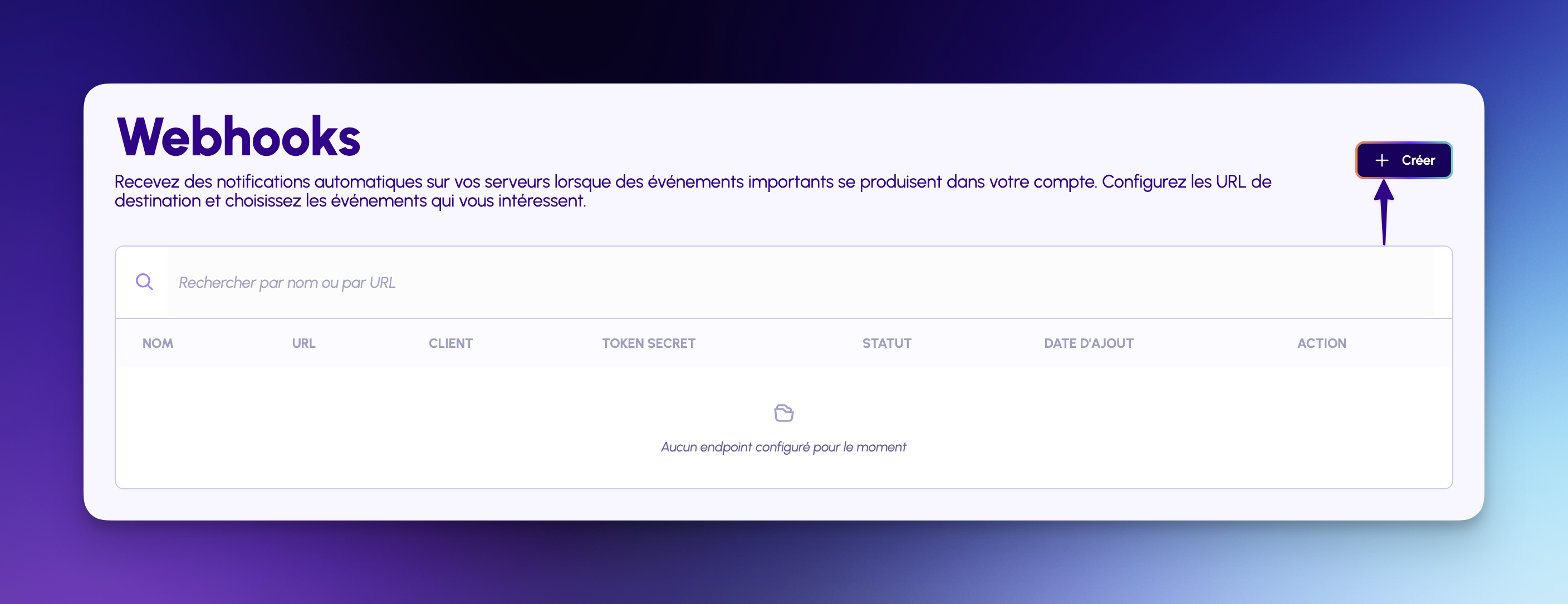
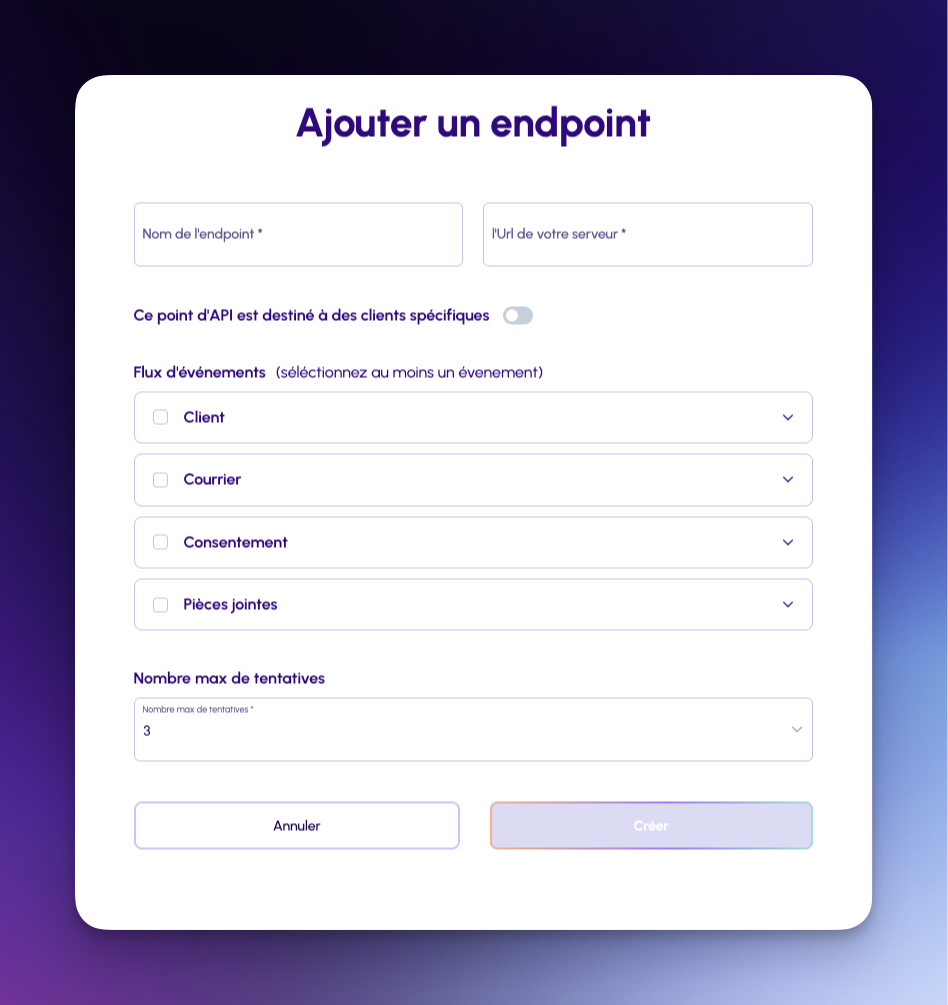
Step 3: Configure your endpoint
Provide the following information:
Nom de l'endpoint - A friendly name to identify this webhook
l'Url de votre serveur - Your public HTTPS endpoint URL
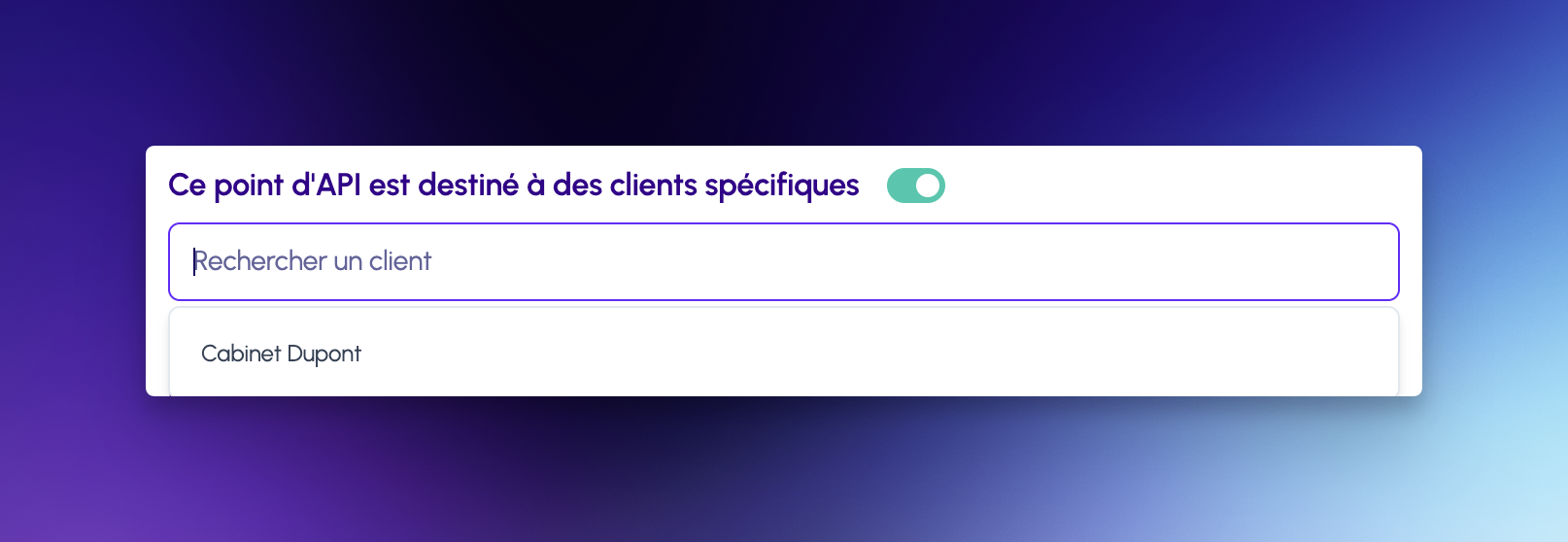
Ce point d'API est destiné à des clients spécifiques (optional toggle) - Enable this to scope the webhook to specific customers. Once toggled on, a search field appears where you can select one or more customers. Upon creation, a separate webhook is automatically created for each selected customer.
Customer-specific webhooksWhen Ce point d'API est destiné à des clients spécifiques is enabled, search and select as many customers as needed. Clicking Créer will automatically generate one identical webhook endpoint per selected customer — each scoped to events for that customer only.
Endpoint requirements
- Must be publicly accessible
- Must use HTTPS (SSL certificate required)
- Should respond within 10 seconds
- Must return HTTP 200 status for successful receipt
Step 4: Select event types
Choose which events you want to subscribe to. Events are organized into four categories:
Client (Customer events)
customer_accepted- Customer accepted your delegationcustomer_refused- Customer refused your delegationcustomer_pvid_established- Customer KYC verification completed
Courrier (Message events)
lre_sent- LRE message successfully sentlre_failed- LRE message delivery failedls_sent- LS message successfully sentls_failed- LS message delivery failed
Consentement (Consent events)
consent_sent- Consent request sent to recipientconsent_accepted- Recipient accepted consentconsent_rejected- Recipient rejected consentconsent_expired- Consent request expired
Pièces jointes (Attachment events)
evidence_generated- Evidence PDF document generated and ready for download
Click Ajouter un endpoint to create your webhook subscription.
See Event Types & Delivery for detailed payload examples.
Managing webhooks
Once created, your webhook appears in the dashboard:
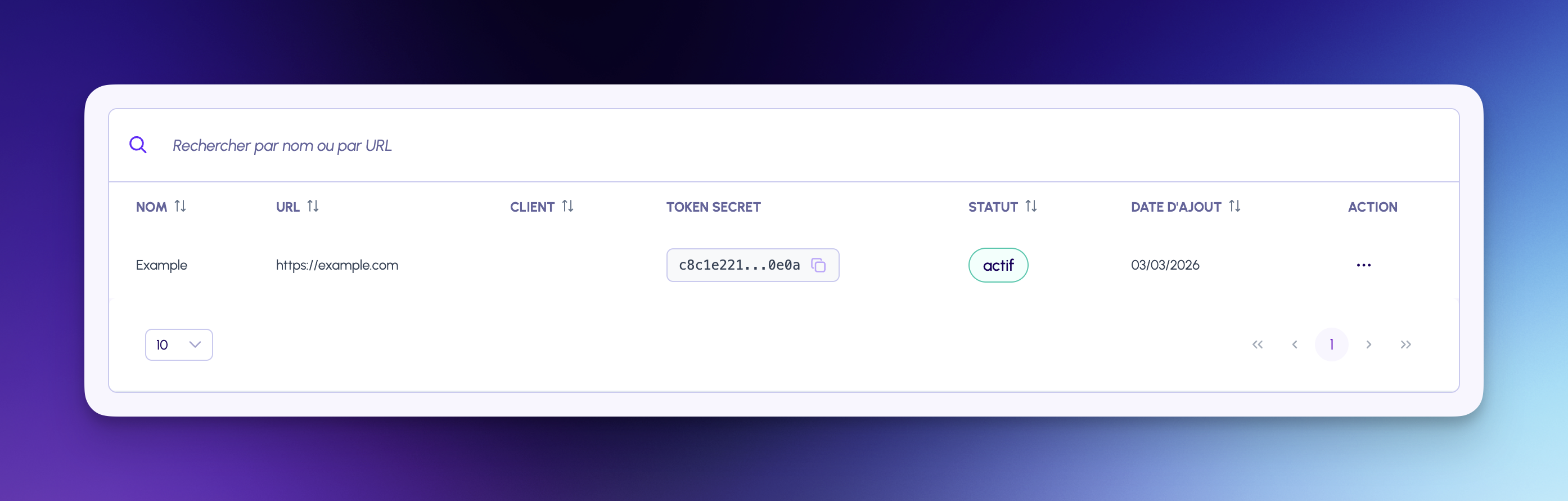
Each webhook displays:
- NOM - Endpoint name
- URL - Your server URL
- TOKEN SECRET - Signature verification token (partially hidden)
- CLIENT - Your customer if you choose to provide one or
- STATUT - Current status (
actiforinactif) - DATE D'AJOUT - Creation date
- ACTION - Edit, test, view, or delete
Testing your webhook
Click the Tester button in the ACTION menu to send a test event:
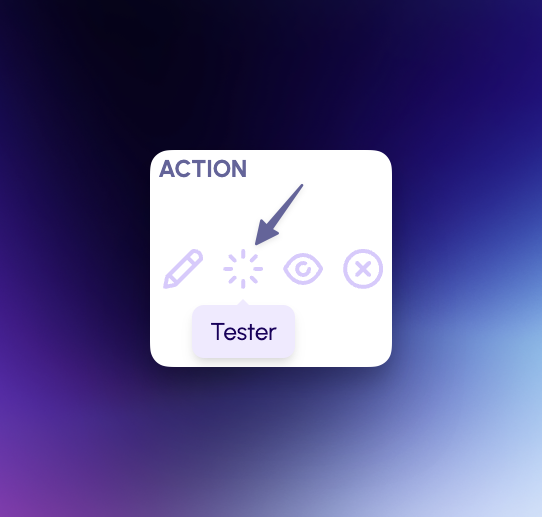
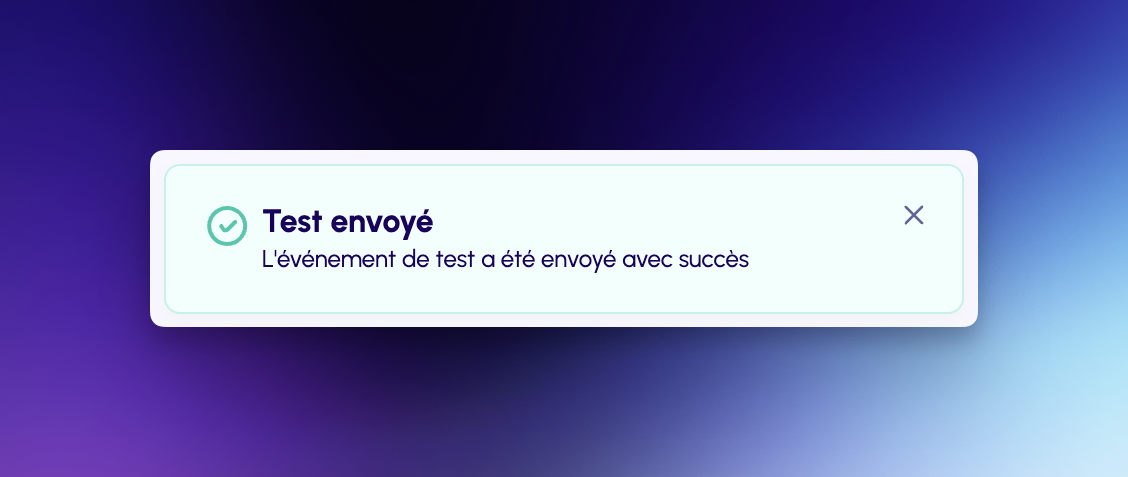
Stampee sends a test event to verify your endpoint is reachable and responding correctly.
Test event payload:
{
  "type": "test",
  "timestamp": "2025-02-07T14:30:00.000Z",
  "data": {
    "test": true,
    "message": "This is a test webhook from Stampee"
  }
}
Webhook event structure
All webhook events share a common structure:
{
  "type": "ls_sent",
  "timestamp": "2025-02-07T14:30:00.000Z",
  "data": {
    "message_id": "123456789012",
    "recipient_name": "John Doe",
    "recipient_email": "[email protected]",
    "sender_name": "Acme Corporation",
    "sent_at": "2025-02-07T14:30:00.000Z"
  }
}
Common fields:
type- Event type (see Event Types)timestamp- ISO 8601 timestamp when event occurreddata- Event-specific data (varies by event type)
Security
Webhook headers
Every webhook request includes these headers:
Content-Type: application/json
webhook-id: 550e8400-e29b-41d4-a716-446655440000
webhook-timestamp: 1707318600
webhook-signature: v1,a1b2c3d4e5f6...
User-Agent: Stampee-Webhooks/1.0
Header descriptions:
webhook-id- Unique delivery ID (use for idempotency)webhook-timestamp- Unix timestamp when webhook was sentwebhook-signature- HMAC-SHA256 signature in formatv1,{signature}User-Agent- Identifies requests from Stampee
Verifying signatures
The signature is computed using:
{webhook-id}.{webhook-timestamp}.{json-payload}Stampee signs this string with your endpoint's SECRET TOKEN using HMAC-SHA256.
Security best practices
- Always verify signatures before processing webhook events
- Validate timestamps to prevent replay attacks (within 5 minutes)
- Use HTTPS for your webhook endpoint
- Store SECRET TOKEN securely in environment variables
- Implement rate limiting on your webhook endpoint
For signature verification examples, see the Standard Webhooks specification.
Where to find your SECRET TOKEN
Your webhook's TOKEN SECRET is displayed in the dashboard when you create the endpoint. Copy it immediately as it won't be shown again for security reasons.
If you lose your token:
- Delete the existing webhook endpoint
- Create a new endpoint
- Copy the new SECRET TOKEN
- Update your verification code with the new token
Retry mechanism
If your endpoint fails to respond or returns an error, Stampee automatically retries delivery. You can configure the maximum number of retry attempts directly when creating or editing your webhook endpoint (default: 3).
Retry schedule:
- Attempt 1: Immediate
- Attempt 2: 1 minute later
- Attempt 3: 5 minutes later
Retry status
Monitor retry status in the dashboard:
pending- Waiting to be sentdelivered- Successfully delivered (200 response)failed- Permanently failed after all retriesretrying- Currently in retry queue
Best practices
1. Respond quickly
Your endpoint must respond with HTTP 200 within 10 seconds. For long-running tasks:
- Immediately return 200 to acknowledge receipt
- Queue the event for asynchronous processing
- Process the event in the background
2. Handle duplicate events
Use the webhook-id header for idempotency. The same event may be delivered multiple times if retries occur.
3. Log all webhooks
Keep detailed logs for debugging and audit purposes, including:
- Event type and timestamp
- Webhook ID
- Processing time
- Any errors encountered
Monitoring webhooks
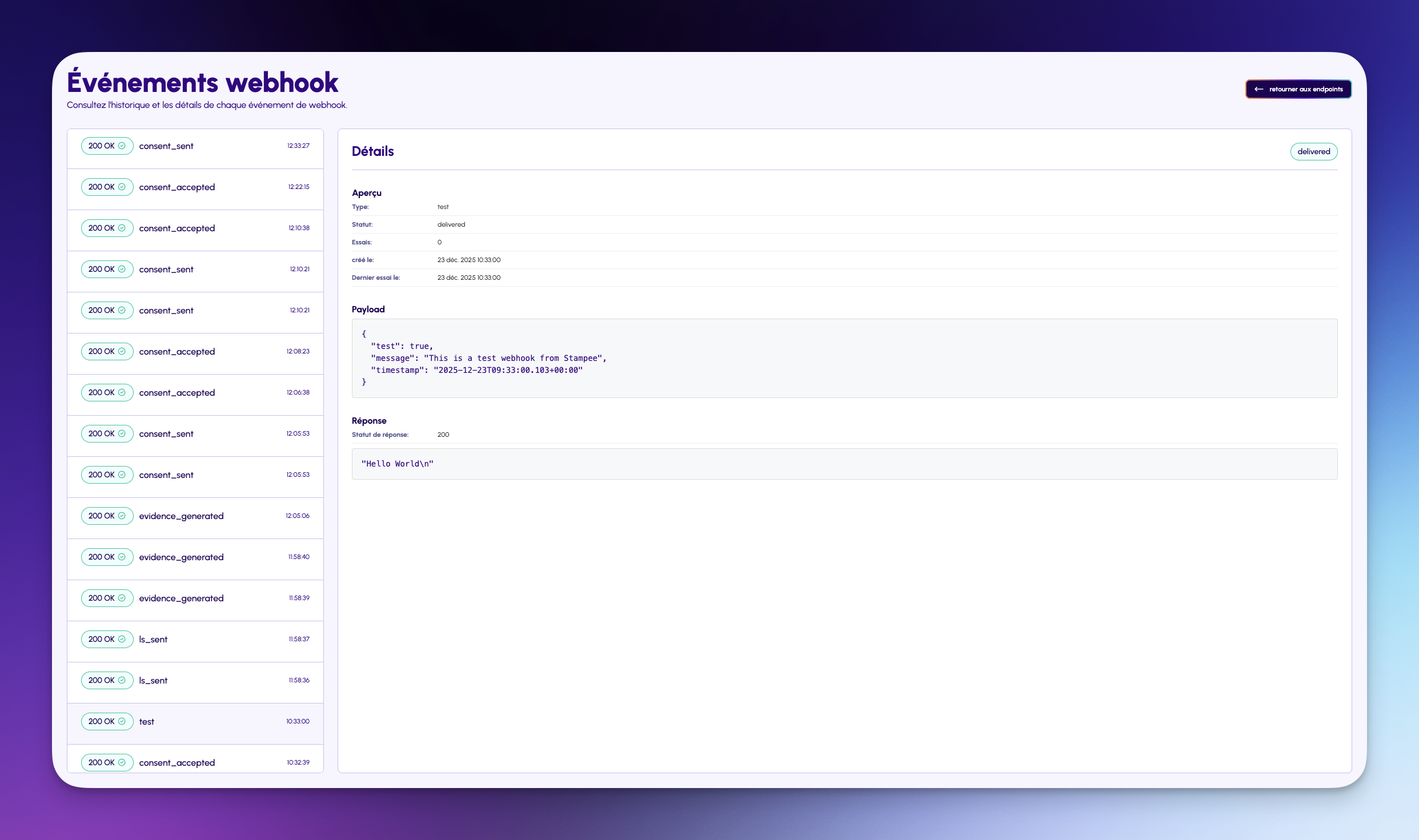
View recent webhook deliveries in your dashboard:
- Event type and timestamp
- Delivery status
- Response code and payload details
- Retry attempts for failed deliveries
Use this to troubleshoot delivery issues and monitor webhook health.
Troubleshooting
Endpoint not receiving webhooks
Check:
- ✅ Endpoint is publicly accessible (not localhost)
- ✅ Endpoint uses HTTPS with valid SSL certificate
- ✅ No firewall blocking Stampee's servers
- ✅ Webhook status is
actifin dashboard - ✅ Events are subscribed in webhook configuration
Webhooks failing with 401/403
Check:
- ✅ Signature verification logic is correct
- ✅ Using the correct
TOKEN SECRETfrom dashboard - ✅ Payload is not modified before verification
- ✅ Timestamp validation allows reasonable clock skew
Webhooks timing out
Check:
- ✅ Endpoint responds within 10 seconds
- ✅ Long-running tasks are queued, not processed synchronously
- ✅ No database locks or slow queries blocking response
Next steps
- Event Types & Delivery - Detailed event payloads and examples
- Quick Start - Send your first message and trigger webhooks
- API Reference - Explore all available endpoints
Need help?
- Webhook Issues: Check the events log in your dashboard
- Integration Support: Email [email protected]
- Technical Questions: See API Reference
Updated 7 months ago